
September 26, 2026

Selectext: Copy Text from Videos
A Chrome extension that lets you copy on-screen text directly from videos on YouTube and any website.
WebmacOSWindowsChrome
 1 / 6
1 / 6Product facts
- Type
- Extension & Plugin
- Category
- Content & Writing › Transcription and Subtitles
- Pricing
- Free
- Platforms
- Web · macOS · Windows · Chrome
- Launched
- Sep 26, 2026
- Listed
- Sep 26, 2026
- Website
- chromewebstore.google.com
Overview
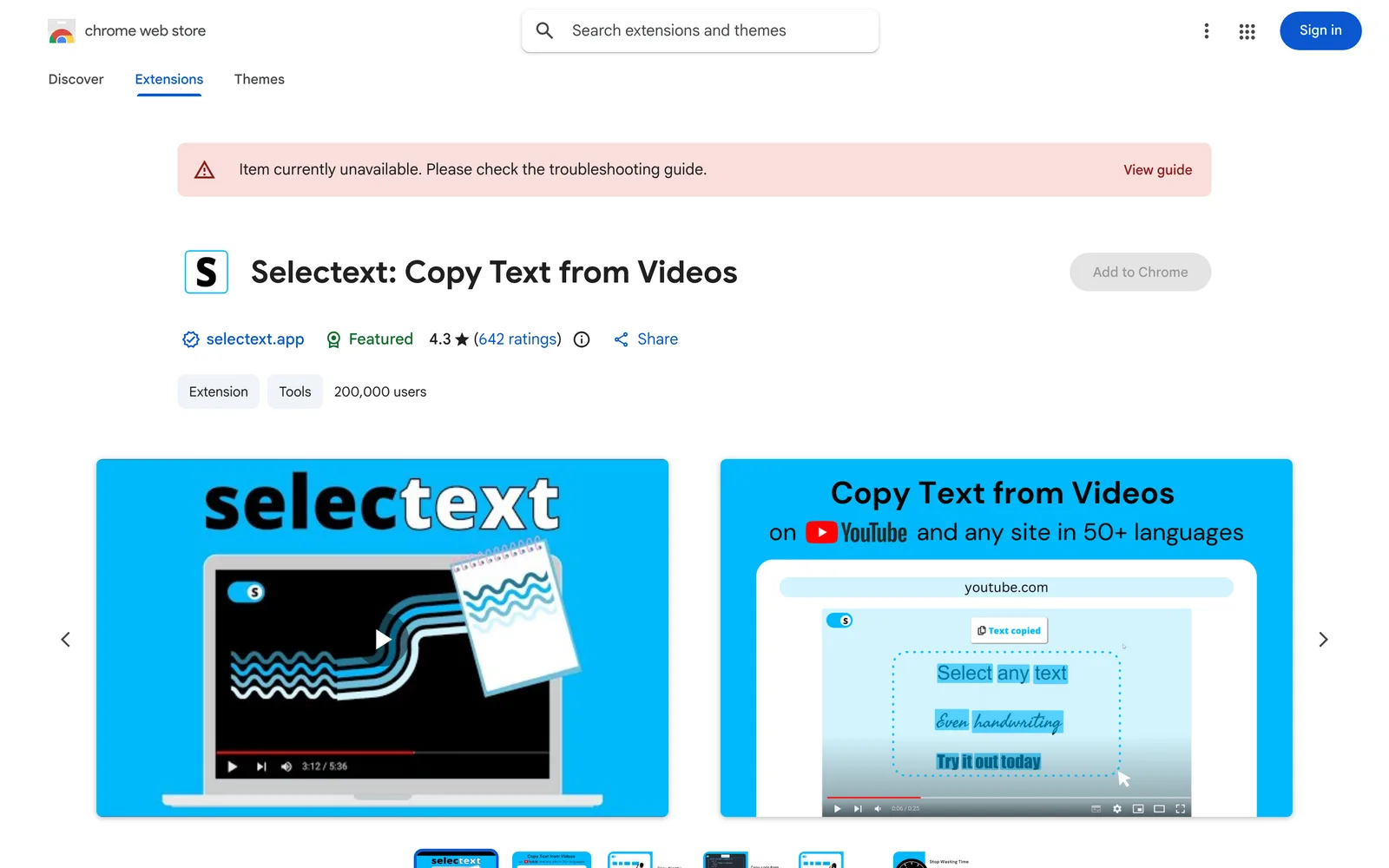
Selectext: Copy Text from Videos is a Chrome browser extension for extracting and copying text from video frames. Powered by AI Computer Vision (OCR), it eliminates the need to manually type notes, code, links, or handwritten text that appear in videos. ## Key Features - **In-video text extraction**: Pause the video, click the toggle button in the top-left corner, and select the text on screen. The content is automatically copied to your clipboard, ready to paste into note-taking apps or code editors. - **Keyboard shortcuts**: Use `Alt+S` on Windows or `Option+S` on macOS to trigger selection without pausing or clicking buttons. - **Fullscreen support**: The text selection feature works even when videos play in fullscreen mode. - **Indentation preservation mode**: A dedicated mode for code that retains original indentation when copying, ideal for indentation-sensitive languages like Python. - **Customizable menu**: Adjust how text is displayed and the rules for copying to the clipboard. - **Multilingual recognition**: Detects text in over 50 languages, including English, Hindi, Turkish, French, and Spanish. ## Supported Scenarios & Websites This extension works across various video platforms, including YouTube, Udemy, Coursera, Sharepoint, social media sites, and university lecture recordings. It targets students who need to copy notes from lectures, developers extracting code from tutorials, and everyday viewers grabbing links shown in videos. ## Account & Privacy Using the extension requires signing up for a free account. The developer states they do not sell data to third parties or use it for purposes unrelated to core functionality or credit scoring. Data processed includes personally identifiable information, user activity, and website content.
Key features
- Video text extraction: Pause the video, select the on-screen text, and it copies to your clipboard automatically.
- Keyboard shortcuts: Press Alt+S on Windows or Option+S on Mac to quickly trigger text selection.
- Fullscreen support: Select and copy text normally even while videos play in fullscreen mode.
- Code indentation preserved: An indentation mode keeps original formatting when copying code, ideal for languages like Python.
- Custom settings menu: Personalize text display and clipboard copy behavior.
- 50+ language recognition: AI OCR technology supports over 50 languages, including English, French, and Spanish.
- Works on all video platforms: Compatible with YouTube, Udemy, Coursera, Sharepoint, social media, and more.
Releases
Notify me Initial · Selectext: Copy Text from Videos
Q&A
- How do I copy text from videos using Selectext?
- Pause the video, click the Selectext toggle button that appears in the top-left corner, then select the text you need. It will be copied to your clipboard automatically. You can also use the shortcut Alt+S (Windows) or Option+S (Mac) to speed things up.
- Is Selectext free?
- You need to register a free account to start using the extension. Paid Premium plans are also available for more credits and additional features.
- Which websites and video platforms are supported?
- It supports all video websites, including YouTube, Udemy, Coursera, Sharepoint, social media sites, and university/college lecture recordings.
- Does it preserve indentation when copying code?
- Yes. Selectext offers an Indentation mode that preserves the original indentation when copying code, which is essential for programming languages like Python.
Bookmark
This product has no owner yet
It was listed by the platform or its author left. If it is your work, prove your relationship to become the owner.
Claim this productThe product content on this page was translated by AI from the author's original.