
September 26, 2026

Screen Recorder
A Chrome extension that lets you record your screen, a window, or a tab with a single click.
Chrome
 1 / 7
1 / 7Product facts
- Type
- Extension & Plugin
- Category
- Creativity & Media › Streaming and Recording
- Pricing
- Free
- Platforms
- Chrome
- Launched
- Sep 26, 2026
- Listed
- Sep 26, 2026
- Website
- chromewebstore.google.com
Overview
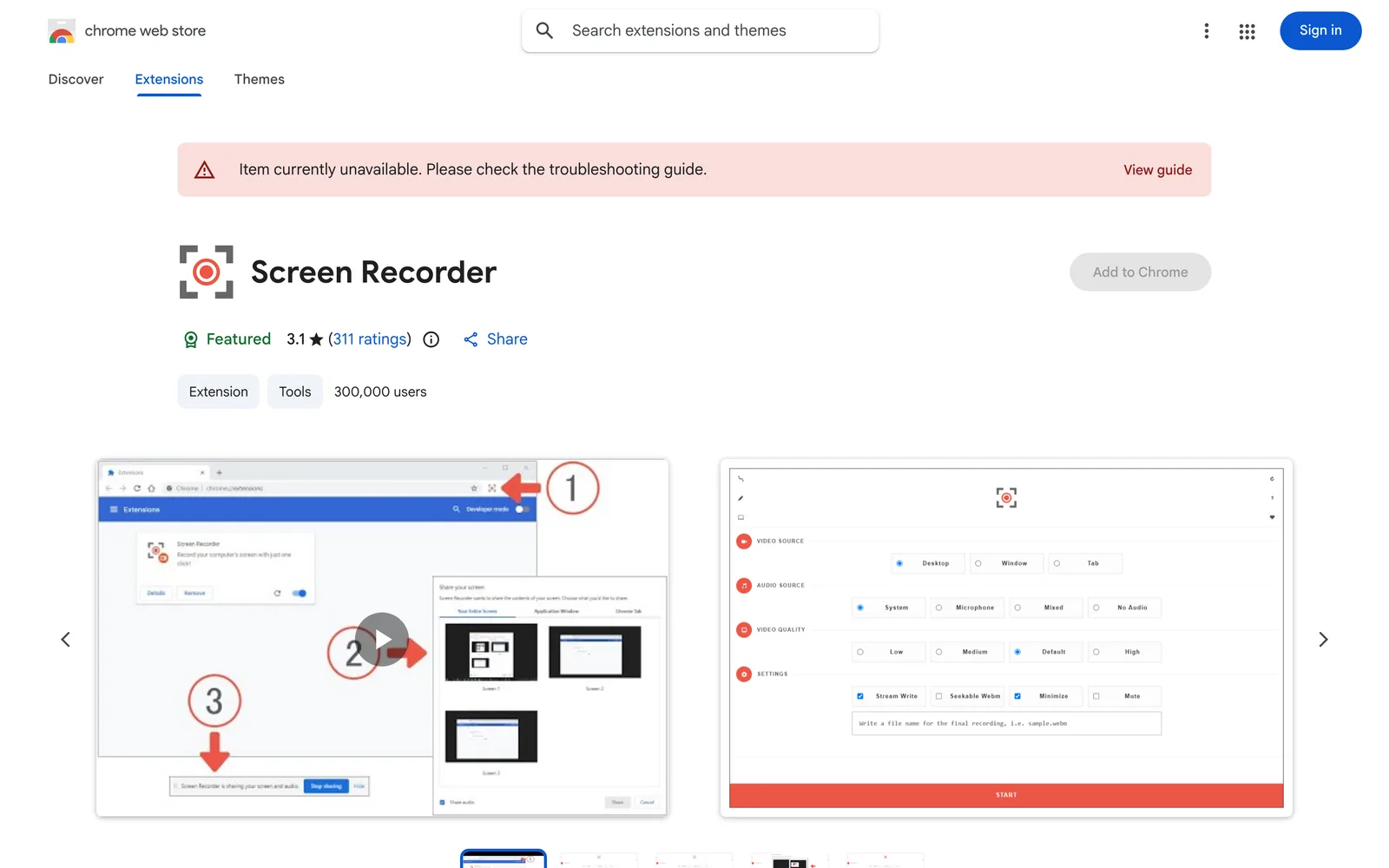
**Video and Audio Source Selection** Video sources include the entire screen, a specific window, or a single browser tab. Audio sources can be set to system audio, microphone, mixed audio, or no audio. When you start recording, a selection window appears; choose your target and click the Share button to begin capture. **Workflow** 1. Click the toolbar button to open the recording interface. 2. Adjust the video and audio source options as needed. 3. Click the Start button, then select the screen, tab, or window to record in the pop-up window. 4. Click the Share button to start recording. 5. When finished, click the toolbar button again or the stop button in the interface to end the recording. 6. The recorded video is automatically downloaded to your computer's default download folder. **Format and Interface** The default output format is webm. Use third-party software if you need other formats. The extension interface supports a dark theme—click the moon icon on the right side of the toolbar to toggle it. **Privacy and Data** The developer states that this extension does not collect or use user data, does not sell data to third parties, and does not use data for purposes unrelated to its core functionality or for credit scoring. The extension size is 63.36KiB, the current version is 0.2.3, the language is English, and it has been installed by approximately 300,000 users.
Key features
- One-click recording: Click the toolbar button to start the screen recording process.
- Multiple video sources: Record the entire screen, a specific app window, or a single browser tab.
- Multiple audio sources: Choose system audio, microphone, mixed audio, or no audio.
- Auto-download: Videos are automatically saved to your computer's default download folder after recording.
- webm output: Recorded videos are saved in webm format by default.
- Dark theme: Click the moon icon in the interface to switch to dark mode.
Releases
Notify me Initial · Screen Recorder
Q&A
- How do I start recording my screen?
- Click the toolbar button to open the recording interface, select your video and audio sources, click the Start button, choose the screen, tab, or window to record in the pop-up window, and finally click the Share button to begin recording.
- What format are the recorded videos in?
- The default output format is webm. If you need another format, use other software to convert it.
- Where are the videos saved after recording?
- Videos are automatically downloaded to your computer's default download location.
- Does this extension collect my data?
- The developer states that this extension does not collect or use user data, does not sell data to third parties, and does not use it for purposes unrelated to its core functionality.
- Can I record just a single browser tab?
- Yes. Video sources include the entire screen, a specific window, or a single tab.
Bookmark
This product has no owner yet
It was listed by the platform or its author left. If it is your work, prove your relationship to become the owner.
Claim this productAlternatives

The product content on this page was translated by AI from the author's original.