
September 26, 2026

A Chrome extension that removes mouse drag and right-click restrictions on web pages, with batch image saving, word count, and page screenshot features.
Chrome
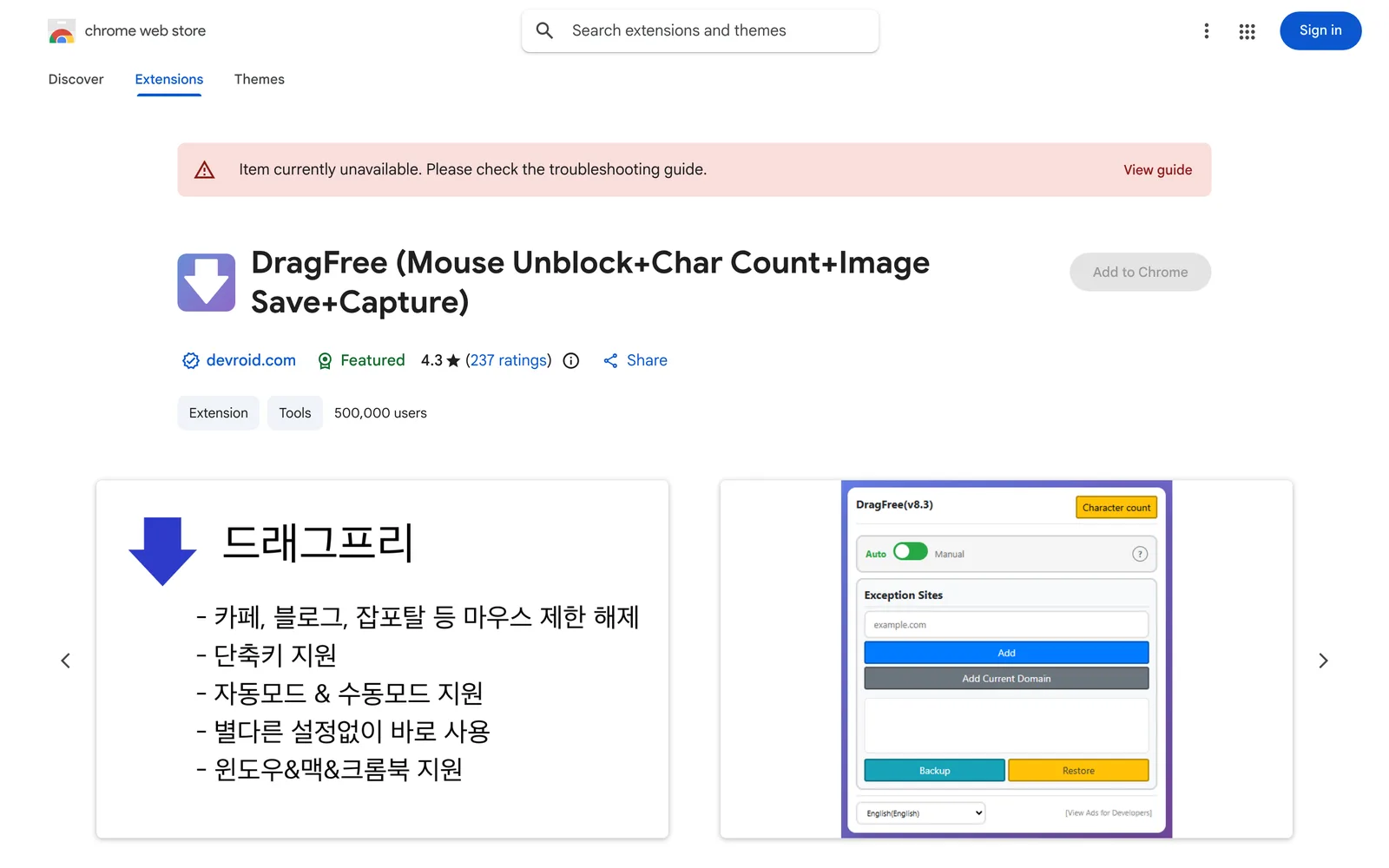 1 / 6
1 / 6Product facts
- Type
- Extension & Plugin
- Category
- Productivity & Workflow › Launchers and Utilities
- Pricing
- Free
- Platforms
- Chrome
- Launched
- Sep 26, 2026
- Listed
- Sep 26, 2026
- Website
- chromewebstore.google.com
Overview
DragFree is a Chrome extension that restores mouse dragging, right-clicking, text selection, copying, and pasting when websites disable them. It's ideal for users who encounter interaction limits on news articles, blogs, study materials, or shopping pages. ### Key Features - **Remove Restrictions**: Re-enables mouse dragging, right-click menus, text selection, copying, and pasting. - **Two Working Modes**: - **Auto Mode**: Automatically lifts restrictions on every site you visit. If a site breaks as a result, add it to the exception list via the "Register Current Domain" button. - **Manual Mode (Recommended)**: Lifts restrictions only when needed by clicking the [Unlock] button or using the shortcut (Alt+1). - **View Text**: Opens the page's HTML/text content in a new tab, extracting even content inside iframes. Useful for sites with advanced protection where right-click cannot be directly enabled. - **Batch Image Saving**: Downloads all images on the current page at once. - **Page Screenshots**: Offers 4 capture modes—visible screen, selected area, selected element, and full-page scrolling. - **Built-in Word Count**: Quickly checks the character count of any text. ### Notes Image saving and screenshot features require the "Download" permission; refresh the page once after granting it. You can manage or revoke permissions anytime via `chrome://extensions`. Developed by (주)한타소프트, sized at 125KiB, and available in 16 languages. The developer states that no user data is collected or used, nor sold to third parties.
Key features
- Remove Restrictions: Re-enable mouse dragging, right-clicking, text selection, copying, and pasting disabled by websites.
- Auto Mode: Automatically removes restrictions on all visited sites, with support for adding specific domains to an exception list.
- Manual Mode: Manually lift restrictions on the current page by clicking the Unlock button or pressing Alt+1.
- View Text: Extract and view a page's HTML or text content in a new tab, including content inside iframes.
- Batch Image Saving: Download all images on the current webpage at once.
- Four Screenshot Modes: Capture the visible screen, a selected area, a selected element, or the full scrolling page.
- Built-in Word Count: Quickly check the character count of any selected or typed text.
Releases
Notify me Initial · DragFree
Q&A
- How do I manually remove webpage restrictions?
- Manual mode is recommended. Simply click the [Unlock] button or press Alt+1 on the target page to lift the restrictions.
- What if Auto Mode causes a website to display incorrectly?
- Use the "Register Current Domain" button to add that site's domain to the exception list so Auto Mode won't affect it.
- What if a site has advanced protection that blocks right-click?
- Use the View Text feature. It extracts and displays the page's HTML or text content in a new tab, even if the content is inside an iframe.
- Why aren't the image saving and screenshot features working?
- Both features require the Download permission. Refresh the page once after granting it. You can manage or revoke permissions anytime at chrome://extensions.
- Does this extension collect my data?
- The developer states that no user data is collected or used, never sold to third parties, and never used for purposes unrelated to core functionality or for credit scoring.
Bookmark
This product has no owner yet
It was listed by the platform or its author left. If it is your work, prove your relationship to become the owner.
Claim this productAlternatives


The product content on this page was translated by AI from the author's original.